
Account and billing
Members and seats
Everyone in a workspace has a role that decides what they can see and change: Owner, Admin, Developer, Service desk agent, Viewer, Billing, or a custom role on Scale. Roles and permissions explains each one.
1Invite someone
Members, Invite someone: enter an email, pick a role card (each says what the role can and can't do) and, on Scale, All projects or the projects they may see. They get a link that works once and expires in 7 days; they sign in or create an account with that email to join. Owners, admins and roles allowed to manage members can invite and revoke.
2Change roles
Pick a new role in the Members table; it saves in place. Only owners make someone an owner or change an owner's role, and you can only give a role that can do no more than you can. If you are the only owner, make someone else an owner before changing your own role. Anyone can leave; owners, admins and roles allowed to manage members can remove people (only owners remove an owner).
3Switch workspaces
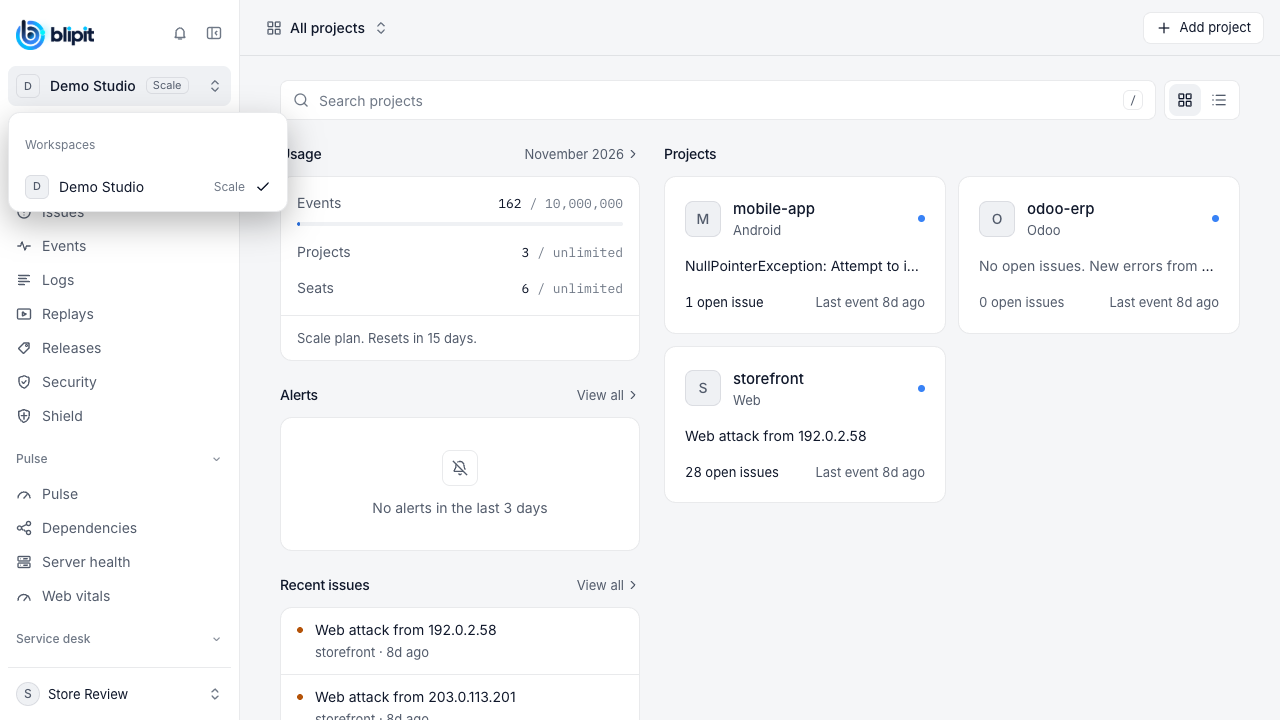
The workspace switcher at the top of the sidebar shows the workspace you are in and its plan. Open it to see every workspace you belong to, each with its plan, and pick one to switch.
Good to know
- Seats per plan: Free 1, Solo 3, Team and Scale unlimited.
- One seat count covers members, pending invites, email alert rule addresses and Odoo people in charge, deduplicated by email. Members and pending invites both take a seat. When the count would go past the plan, the invite, rule or Odoo save is refused with a message saying how many would be getting alerts.
- A list that only shrinks is always accepted, so a downgraded workspace can remove people.
Stuck? Email support@blipit.io. Keys and the project id for each project are under API keys in app.blipit.io.