
Install by platform
Any website
Install npm install @blipit/browser
The Blipit browser SDK is 10 KB. It catches uncaught errors, unhandled promise rejections and failed requests, keeps the clicks and requests that led to each error, records web vitals, puts a Report a bug button on every page, and can record a session replay when an error happens. Install it from npm in a bundled app, or drop one script tag into any page.
1Get your keys
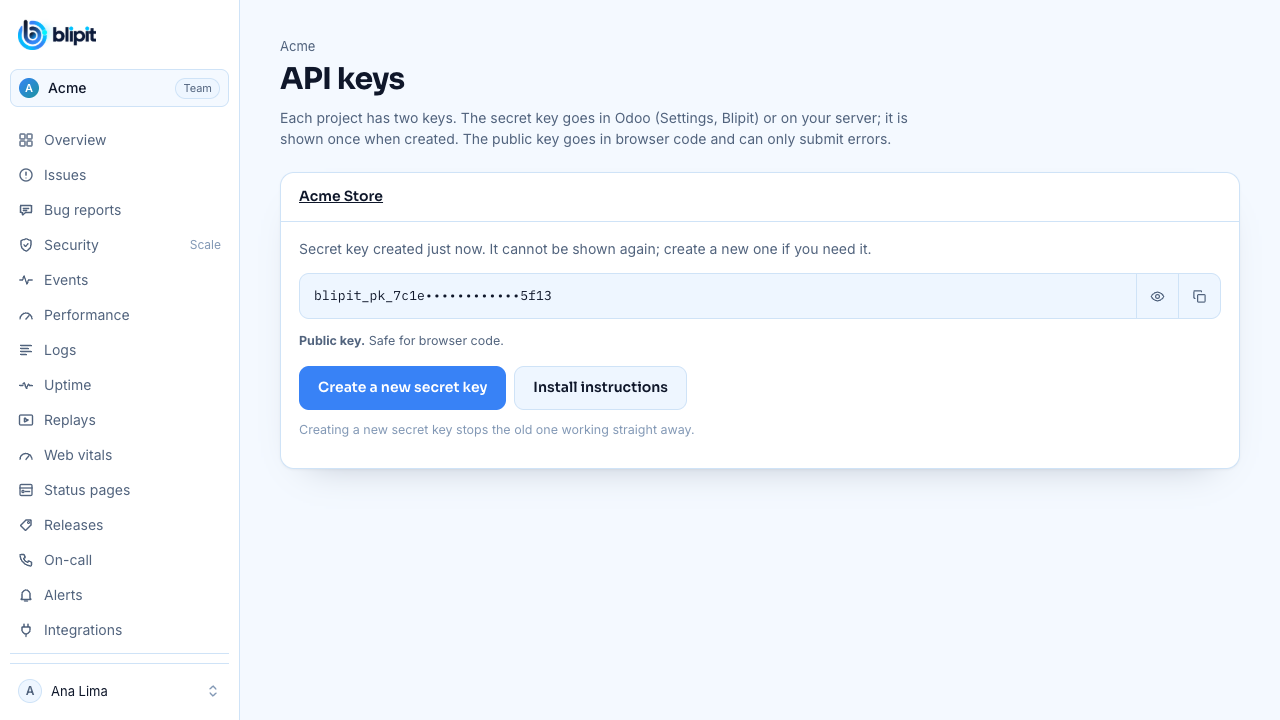
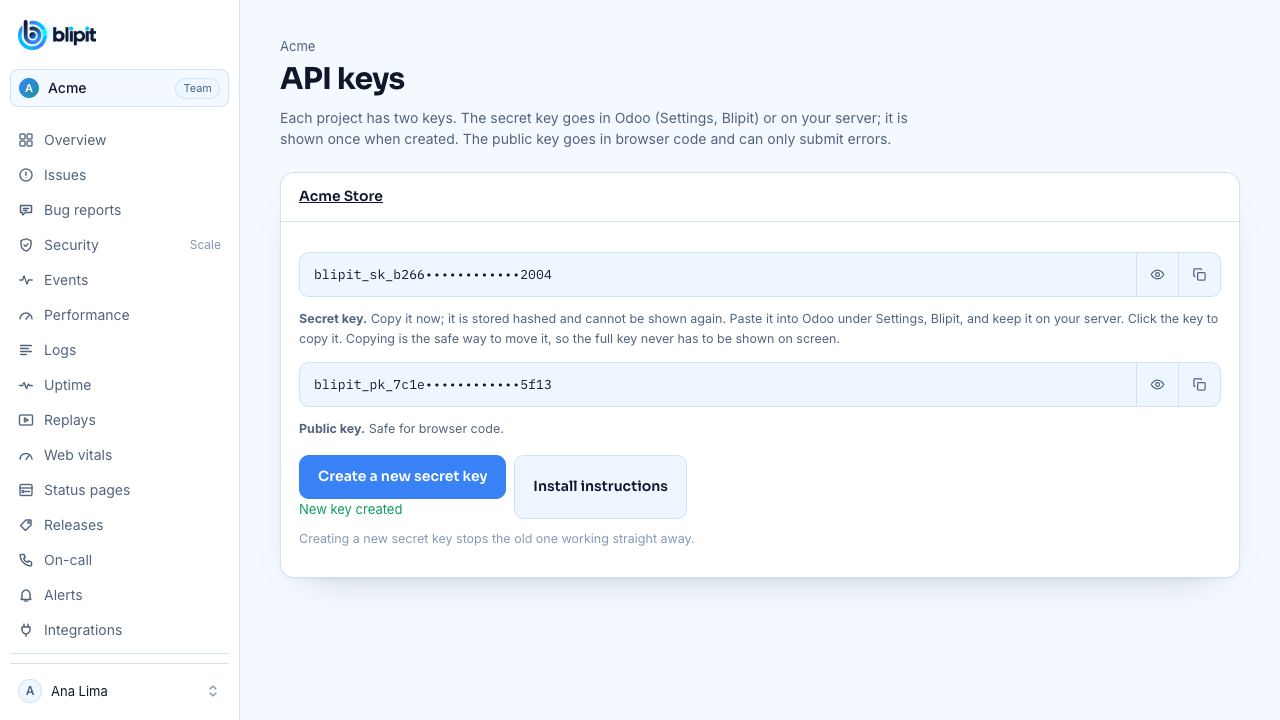
Sign in at app.blipit.io and open API keys in the sidebar, then your project. Every project has two keys. The public key starts with blipit_pk_: it goes in browser and app code, can only send events, and is safe for anyone to see. The secret key starts with blipit_sk_: it stays on your server or in Odoo, never in a browser, because it can also read and change issues. The secret key is shown only once, right after it is created, so copy it then; if you lose it, press Create a new secret key, and the old one stops working at once. Some SDKs also need the project id, shown on the same page.
2With npm
Call init once in your entry file, before the app renders, with the public key. With Vite (React, Vue, Svelte), keep the key in .env as VITE_BLIPIT_KEY; only VITE_ variables reach the browser, and the dev server reads .env only when it starts.
npm install @blipit/browserVITE_BLIPIT_KEY=blipit_pk_your_public_keyimport * as Blipit from "@blipit/browser";
Blipit.init({
key: import.meta.env.VITE_BLIPIT_KEY,
environment: import.meta.env.MODE,
release: "2026.09.28",
replay: { onErrorSampleRate: 1 },
});3Without a bundler: one script tag
Paste this into the <head> of every page, or into your platform's custom code slot, with your public key written in. That is fine: the public key can only send events.
<script src="https://blipit.io/sdk/blipit.js"></script>
<script>
  Blipit.init({ key: "blipit_pk_your_public_key", environment: "production", release: "2026.09.28", replay: { onErrorSampleRate: 1 } });
</script>4Keep keys out of git
Keep keys in environment variables or your host's secret settings, never in code you commit, and add your .env files to .gitignore. A public key in a web page is normal. If a secret key ever ends up in git, a public page, a screenshot or a chat, open API keys, press Create a new secret key, and paste the new key wherever the old one was used: the old key stops working straight away.
.env
.env.local
.env.*.local5Tell Blipit who the user is (optional)
After sign-in, attach the user so issues show who was affected and replays can be found by user.
Blipit.setUser({ id: "42", email: "ana@example.com" });6React, Vue, Angular and Svelte: report caught errors
Frameworks catch errors inside components before the browser sees them, so pass those to Blipit too. Uncaught errors anywhere else are reported on their own.
createRoot(document.getElementById("root")!, {
  onCaughtError: (error) => Blipit.captureException(error),
  onUncaughtError: (error) => Blipit.captureException(error),
}).render(<App />);class ErrorBoundary extends React.Component<{ children: React.ReactNode }, { failed: boolean }> {
state = { failed: false };
static getDerivedStateFromError() {
return { failed: true };
}
componentDidCatch(error: Error) {
Blipit.captureException(error);
}
render() {
return this.state.failed ? <p>Something went wrong.</p> : this.props.children;
}
}const app = createApp(App);
app.config.errorHandler = (err) => Blipit.captureException(err);
app.mount("#app");import { ErrorHandler } from "@angular/core";
import * as Blipit from "@blipit/browser";
class BlipitErrorHandler implements ErrorHandler {
handleError(error: unknown) {
Blipit.captureException(error);
console.error(error);
}
}
export const appConfig = { providers: [{ provide: ErrorHandler, useClass: BlipitErrorHandler }] };import * as Blipit from "@blipit/browser";
import type { HandleClientError } from "@sveltejs/kit";
export const handleError: HandleClientError = ({ error }) => {
Blipit.captureException(error);
};7Bug reports: the Report a bug button
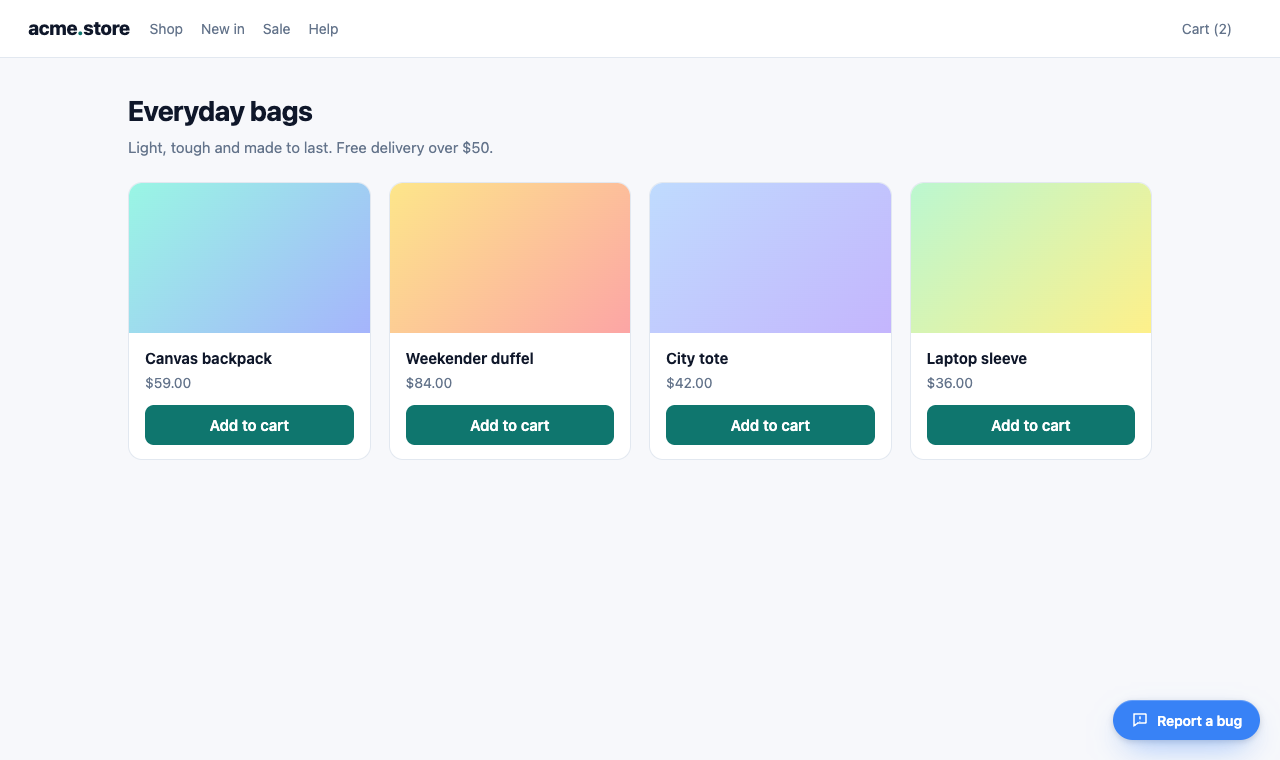
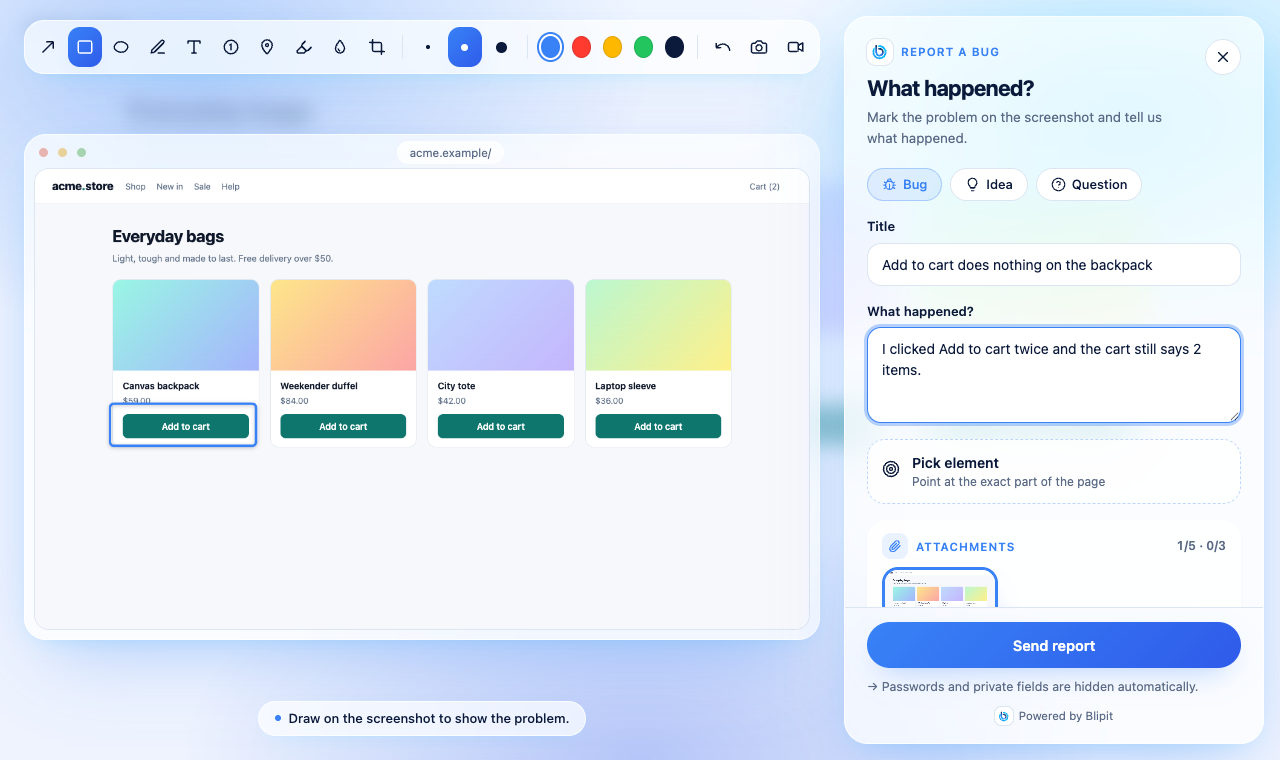
As soon as the SDK starts with your public key, a Report a bug button appears in the bottom-right corner of every page, in the visitor's language. A click opens the reporter: a screenshot of the page to mark up, an element picker, an optional screen recording, and a title and description. Change the position, style, text, colour and keyboard shortcut in code, as below, or for every site at once in app.blipit.io, Project settings, Bug report widget; options in code win. The Bug report button guide shows every option with screenshots and a live demo.
Blipit.init({
  key: import.meta.env.VITE_BLIPIT_KEY,
  feedbackWidget: {
    position: "bottom-left",
    style: "icon",
    text: "Report Issue",
    color: "#E11D48",
    shortcut: "ctrl+shift+b",
  },
});
8Open the reporter from your own button
To put a Report a bug button in your own header or menu, use the official one: Blipit.reportButton() returns a ready-made button with the Blipit icon and Report a bug in the visitor's language, and React apps can render <BlipitReportButton /> from @blipit/nextjs/react (npm install @blipit/nextjs). Prefer your own design? Call openReport() from any click handler, or attachReport(element) to wire up an element that already exists. Either way the reporter opens exactly as it does from the floating button. The Blipit icon may only be used next to Report a bug, as the official button shows.
<nav id="help-menu"></nav>
<script>
  document.getElementById("help-menu").append(Blipit.reportButton());
</script>import { BlipitReportButton } from "@blipit/nextjs/react";
export function Header() {
return (
<header>
<a href="/">Acme</a>
<BlipitReportButton variant="outline" size="sm" />
</header>
);
}<script setup>
import { onMounted, ref } from "vue";
import { reportButton } from "@blipit/browser";
const slot = ref();
onMounted(() => slot.value.append(reportButton({ variant: "outline", size: "sm" })));
</script>
<template>
<span ref="slot"></span>
</template><button id="report-issue">Report Issue</button>
<script>
Blipit.attachReport(document.getElementById("report-issue"));
</script>
<button onclick="Blipit.openReport()">Report Issue</button>import { openReport } from "@blipit/browser";
export function ReportIssue() {
return <button onClick={() => openReport()}>Report Issue</button>;
}<script setup>
import { openReport } from "@blipit/browser";
</script>
<template>
<button @click="openReport()">Report Issue</button>
</template>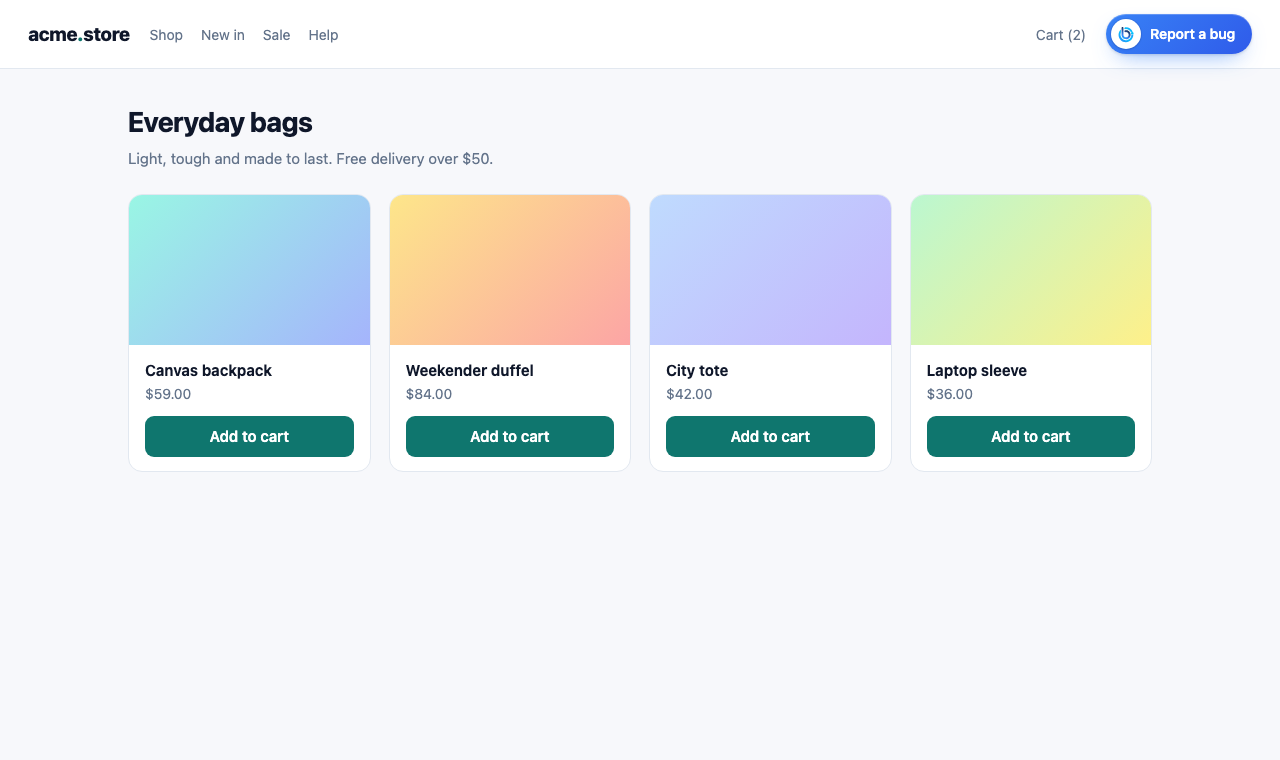
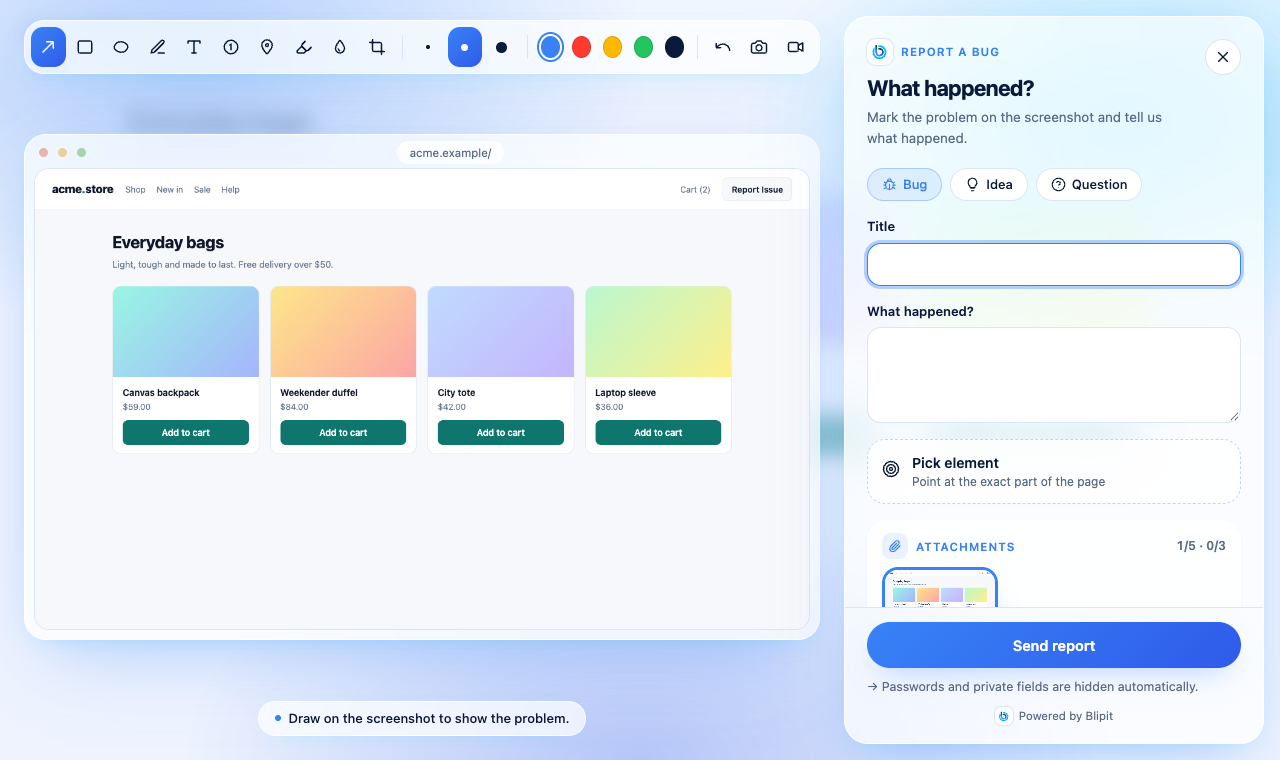
10Prefill the reporter and add context
Call setUser after sign-in: the reporter's name and email are filled in, and they get an email when you reply or change the status. setReportMetadata adds your own fields, such as the plan or the cart size, to every report; it runs when a report is sent, so the values are current.
Blipit.setUser({ id: "42", username: "Ana Lima", email: "ana@example.com" });

Blipit.setReportMetadata(() => ({ plan: "pro", cartItems: cart.length }));11All options and functions
- key: the public key (blipit_pk_). Required.
- environment and release: shown on every event; release powers regressions and source maps. environment defaults to production.
- debug: true logs what the SDK does to the console, with lines that start with [blipit].
- sampleRate (0 to 1), ignoreErrors (strings or patterns) and beforeSend (edit an event, or return null to drop it) control what is sent. autoMuteExtensions (on by default) drops errors that come only from browser extensions.
- webVitals (on by default), replay ({ sessionSampleRate, onErrorSampleRate }) and autoSessionTracking (crash-free rates, needs release).
- feedbackWidget: false hides the Report a bug button, or an object with position, style, text, color, font, match and shortcut changes it. theme: "light", "dark" or "auto" sets the reporter's theme.
- user ({ id, name, email }) and company (a name or { id, name }) fill in the reporter and are added to reports.
- endpoint: only for a self-hosted ingest; the default is https://in.blipit.io/api/v1/events.
- Functions: captureException(error), captureMessage(text, level), setUser, setTag(key, value), addBreadcrumb({ category, message }), openReport(), attachReport(element), reportButton(options), updateWidget(options), setReportMetadata(fn), showFeedback() and flush(), which returns a promise once queued events are sent.
- Widget settings changed in the dashboard reach browsers within an hour, because the SDK keeps them that long; a private window shows the change at once.
12Check it works
Reload your site. The Report a bug button appears in the bottom-right corner, and within a minute the page view shows under Web vitals in app.blipit.io. Then send a test event: call captureMessage once from your code, or with the script tag run the line below in the browser console. It shows under Issues within a few seconds.
Blipit.captureMessage("Hello from " + location.host, "info");Good to know
- Options: sampleRate (0 to 1), ignoreErrors (strings or patterns), beforeSend to drop or edit an event, maxBreadcrumbs, webVitals (on by default), autoSessionTracking for crash-free rates (needs release).
- blipit.io/sdk/blipit.js always serves the latest version (0.3.23). Pinned versions live at blipit.io/sdk/0.3.23/blipit.js if you want to control upgrades.
- If your site sends a Content Security Policy, allow script-src https://blipit.io (the script tag, and the reporter editor and replay add-on, which load from blipit.io/sdk/<version>/ on first use), connect-src https://in.blipit.io (events, screenshots and screen recordings all go to in.blipit.io), img-src data: (the screenshot is drawn from an image of the page) and media-src blob: (recordings play back in the reporter). The screenshot reloads the page's images and fonts, so their hosts belong in connect-src too, or they are left blank. No style-src change is needed. With the script tag, call Blipit.init from your own .js file or give the inline script a nonce, because a strict policy blocks inline scripts. For voice in screen recordings, the site's Permissions-Policy header must allow microphone=(self), and display-capture=(self) for screen recording; with microphone=() recordings work without sound.
- Keeping Blipit up to date: the Keeping Blipit up to date guide (docs.blipit.io/updates) explains the update banner, the emails for important releases, the notice in your development console and the update command for this platform.
- One project per app and platform: each project picks its platform when it is created (Android, iOS, React Native, Flutter, Web, Backend or Odoo), and Blipit refuses data from any other platform with a clear error, so an iOS app and an Android app need two projects with two keys. Releases, versions, crash rates and store builds differ per platform, so mixing them in one project makes all of them wrong. A Web project also takes the server side of the same web app (the Next.js server or Node), and a React Native or Flutter project also takes its own native Android and iOS crash reports.
Stuck? Email support@blipit.io. Keys and the project id for each project are under API keys in app.blipit.io.